












Switch display inputs.From your PC.
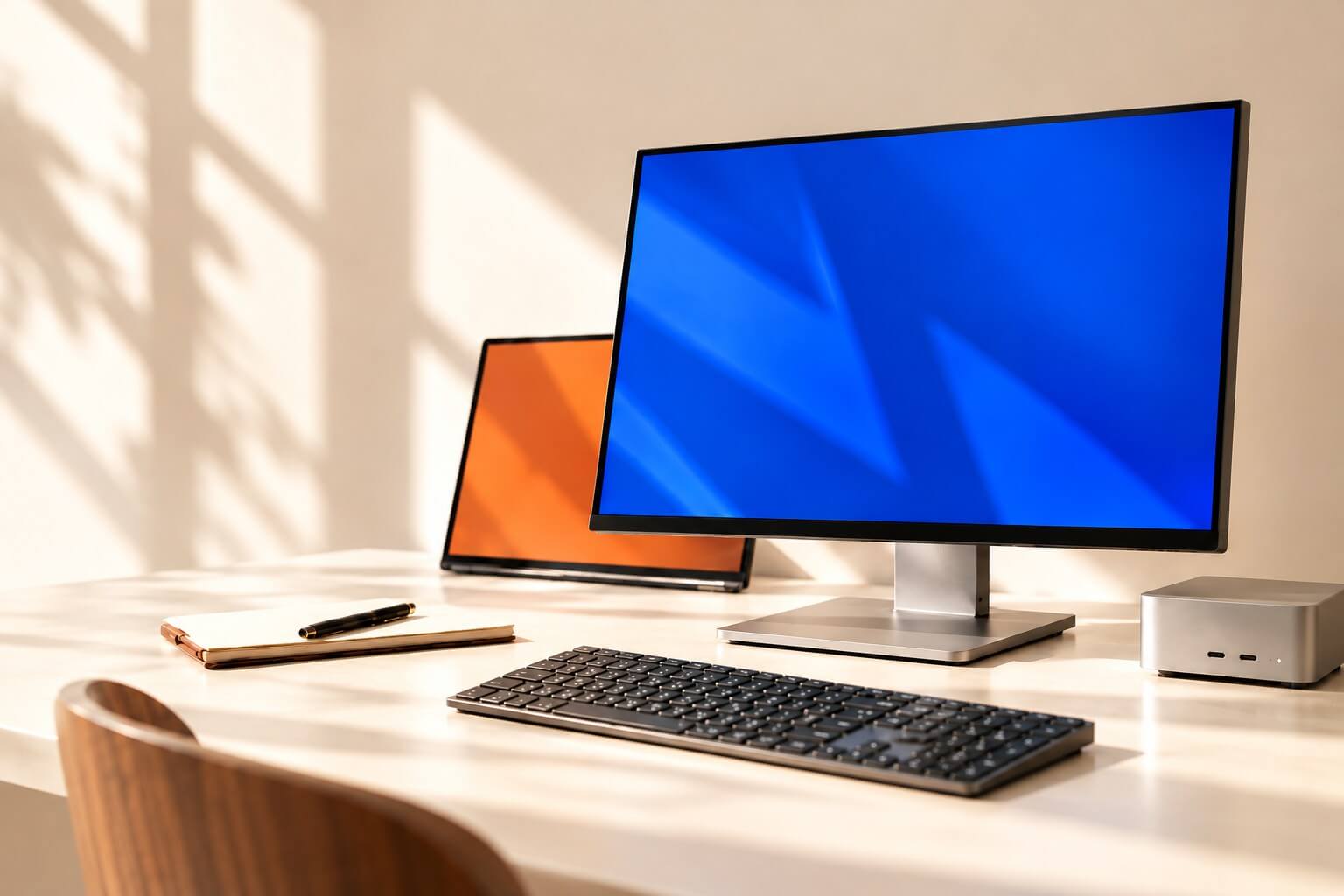
Sharing a display between PCs? Switch its input with the click of a button.
Check compatibility
Does switching inputs interrupt your work?
Switching inputs is a hassle…

Every time you change PCs, you reach for the display’s buttons. With multiple displays, you have to switch each one separately.
For example
- Sharing a display between your work laptop and personal PC.
- Sharing a display between your everyday PC and a game console.
Bring those little tasks together in one app.
Control your displays in one place.
Switch inputs using the app’s buttons or keyboard shortcuts.
Select an input and switch
Choose an input for each display, then click “Switch”.
Use keyboard shortcuts
Assign keys to each display and input. Shortcuts work while ShiftDIS is running, even when minimized.
Tell your displays apart
Use “Identify” to show a number on each screen. You can also give your displays names that are easy to recognize.
Try it with your own setup.
Input switching support depends on your display and connection.
7 days free
¥980 · one-time purchase
During the free trial, check that ShiftDIS detects your displays and switches their inputs correctly.
Before you start
- OS
- Windows
- Display
- Must support input switching via DDC/CI
- Setup
- Enable DDC/CI in your display’s settings.
Before purchasing, check detection, input switching, and how to return to the original input.
Some combinations of displays, cables, docks, and adapters may not work.
ShiftDIS does not switch USB connections for keyboards or mice.
Display not supported?
If input switching does not work with your display, send us its manufacturer and model, your connection setup, and a description of what happens. We will use this information to improve support where possible.
Send your display detailsNeed help?
My display is not listed
Check the display’s DDC/CI setting, then click “Detect again”. If you use a dock or adapter, try connecting your PC directly to the display.
The input does not switch
Make sure the device connected to the selected input is powered on and ready to output video. The app reports the result of sending the switch command. Check the display itself to confirm that the input changed.
I cannot switch back to the original PC
Some displays stop accepting commands from the original PC after switching inputs. Before switching, check how you will return: install ShiftDIS on the other PC, keep a screen available for control, or use the display’s physical buttons.Sign in to Microsoft Store with the Microsoft account used for your purchase to install ShiftDIS on the other PC without buying it again.
Keyboard shortcuts do not respond
Shortcuts work while ShiftDIS is running, including when minimized. They are disabled when you exit the app. If a shortcut conflicts with another app, choose a different key combination.